
How does Pebblely work?
Create images with Pebblely in 3 easy steps!
Home
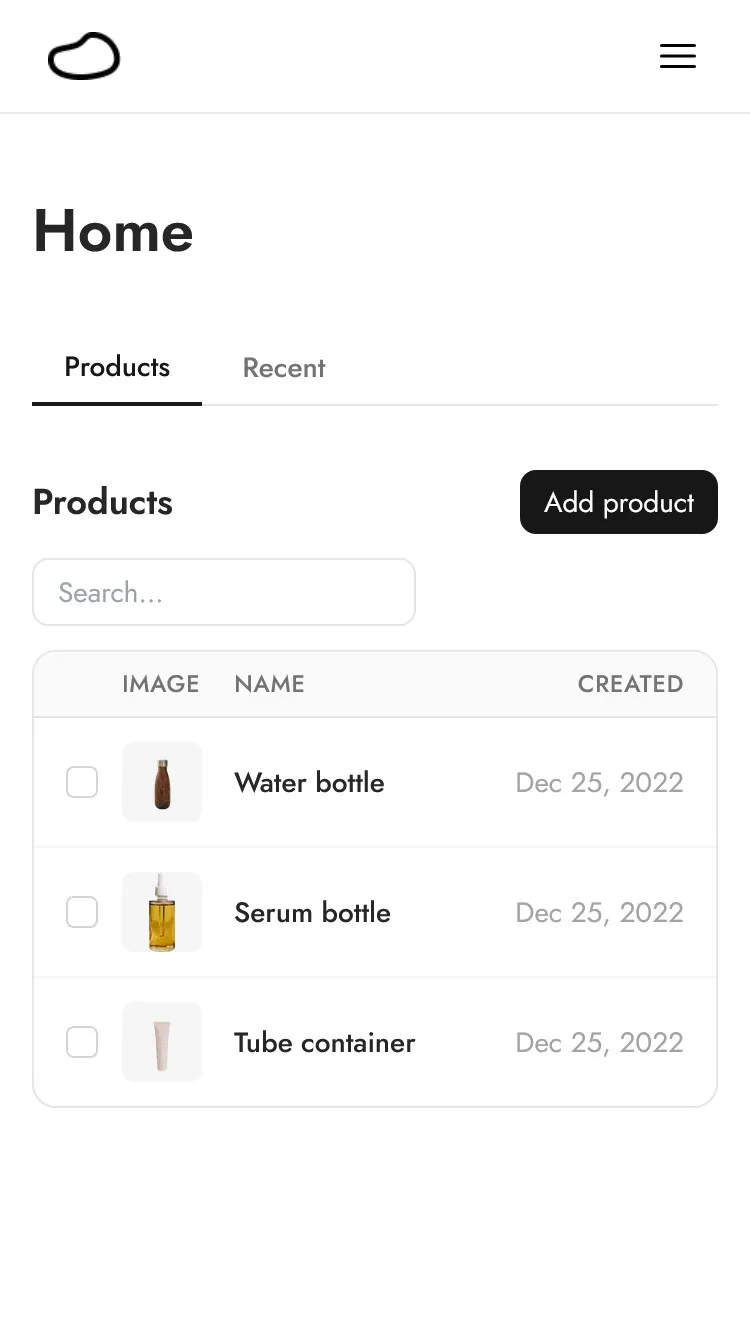
When you first sign up, you will see a Home screen with a set of sample products.
Step 1: Add Product
Add a new product by clicking on the Add product button.
A screen will pop up where you can attach your product photo.
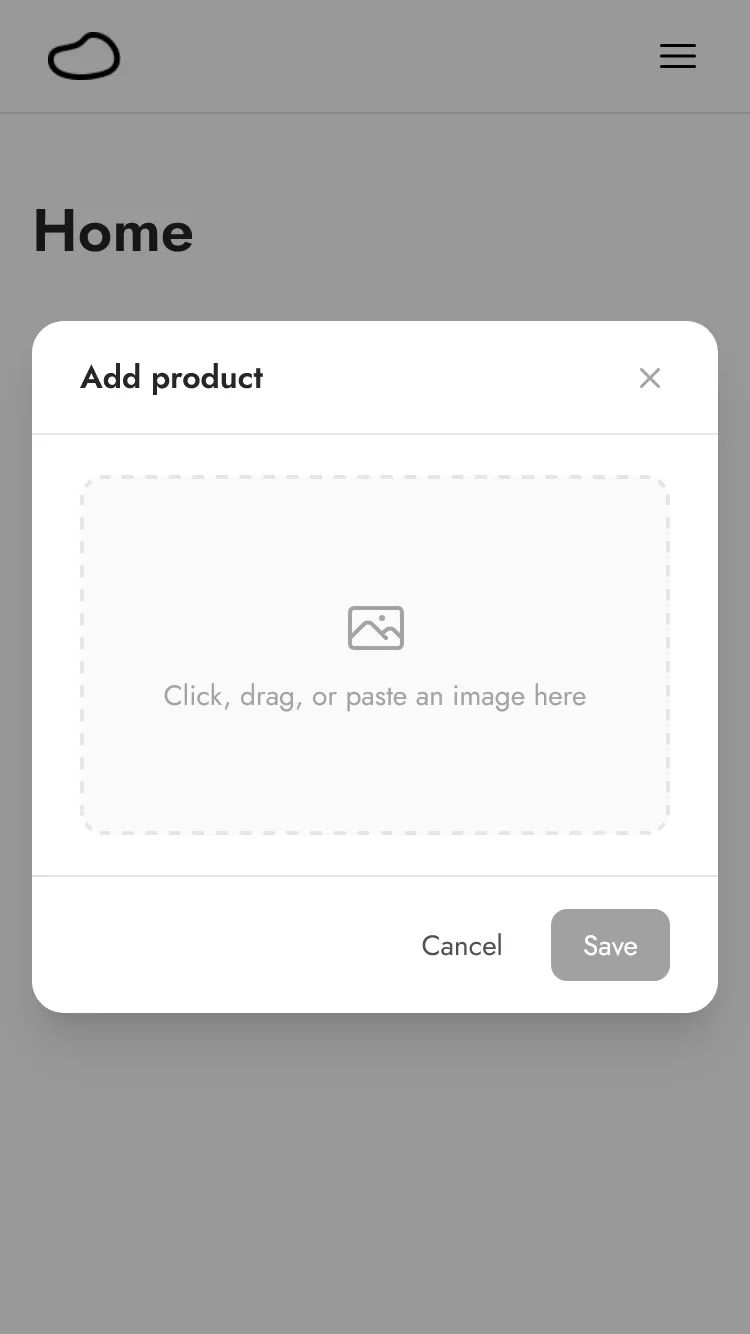
This image will be used by the AI to create your product photos. Make sure to use a clear image and crop the image to your product to avoid confusing the AI.
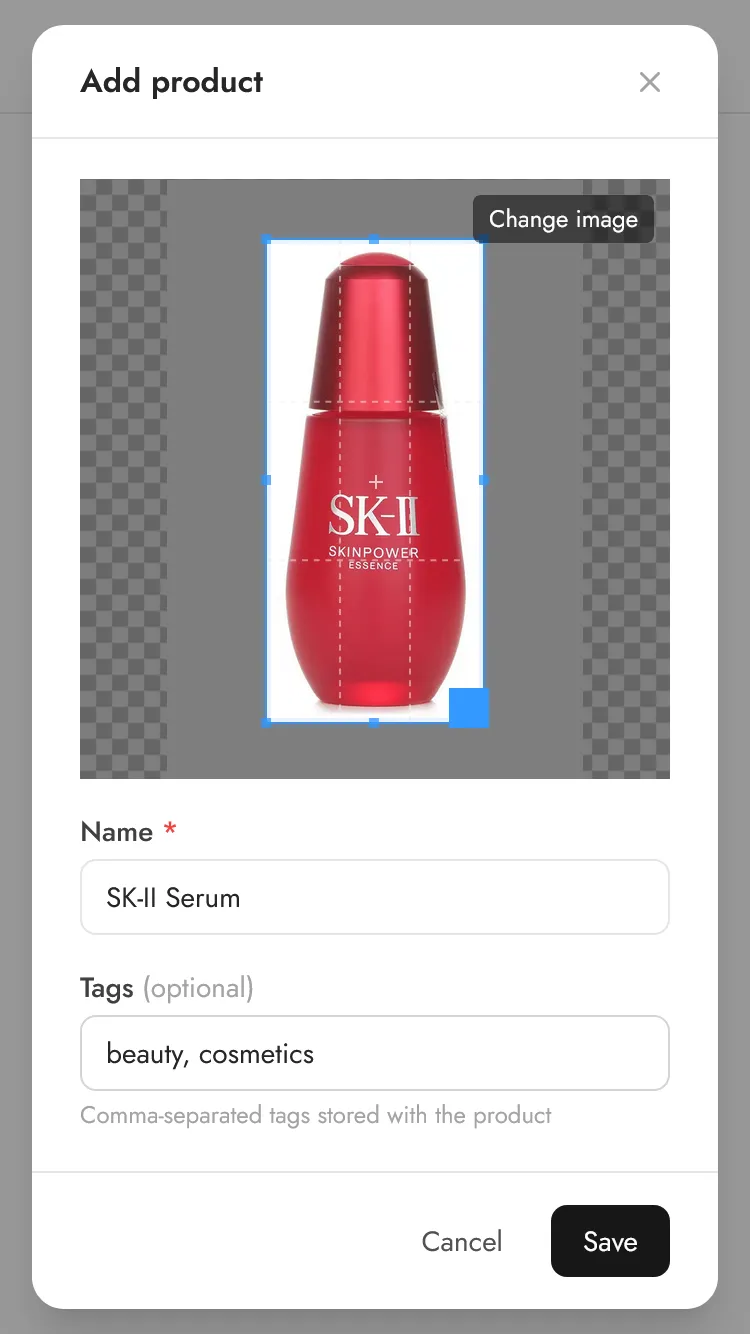
When a photo is added, you can crop the image, as well as add the product name and any tags.
Once you are done, click Save.
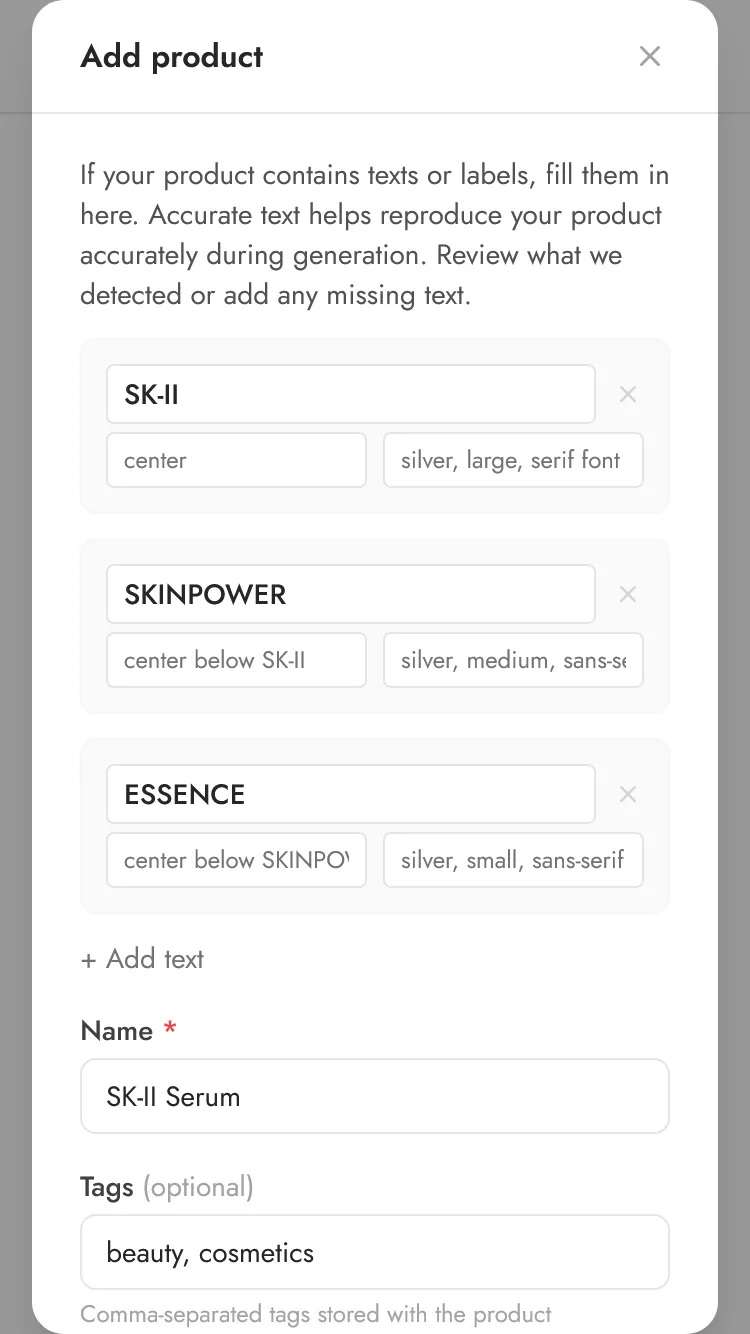
When you first save your product, Pebblely automatically extracts all visible text from your product image, including brand names, ingredients, dosage info, etc.
This text is then used during generation so your product photos preserve the correct labels and packaging copy. For best results, ensure the extracted text, if any, is accurate.
You can review, edit, or add text items to ensure accuracy. If the extraction missed something, you can manually add text with its position and styling hints so the AI knows exactly where and how to render it.
After that, click Save again.
Step 2: Generate Image
Once your product is saved, click on the product and a screen will appear for generating your image.
Templates
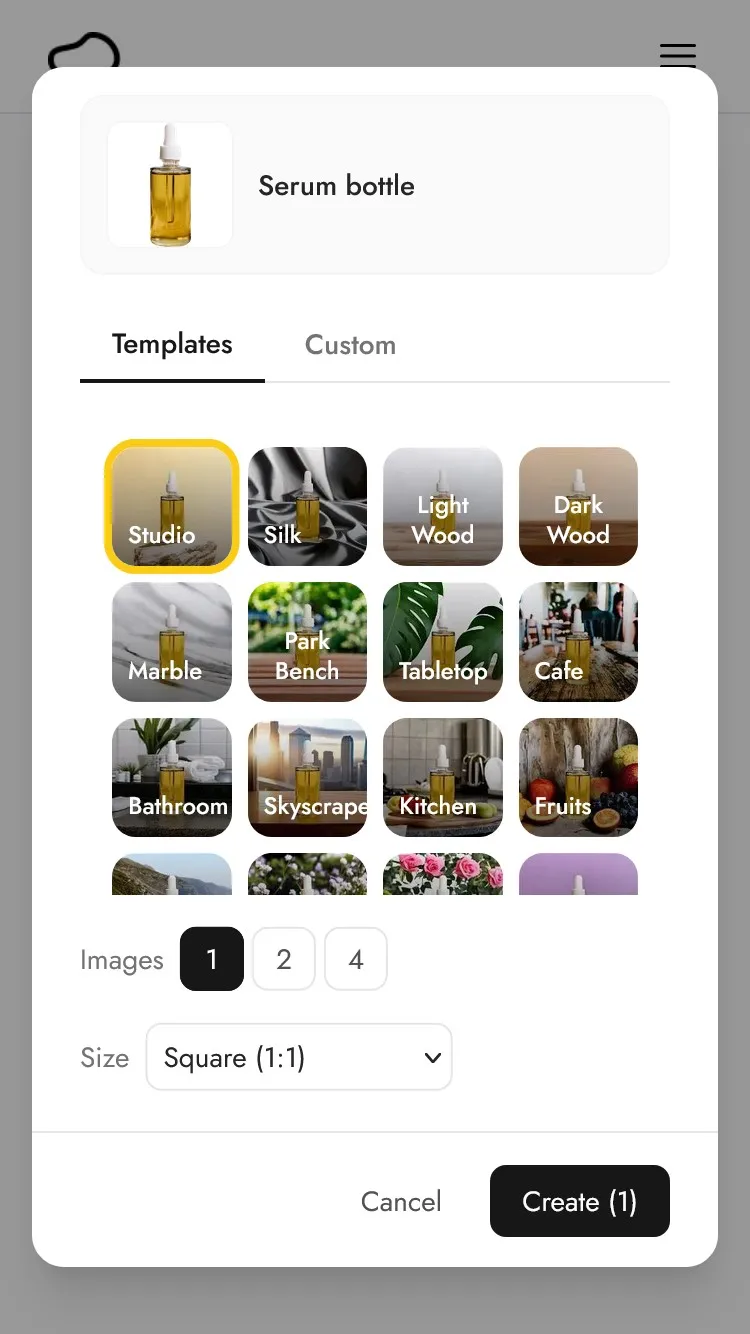
Select your favorite template, the number of images you want to generate, and the image size.
Custom Prompts
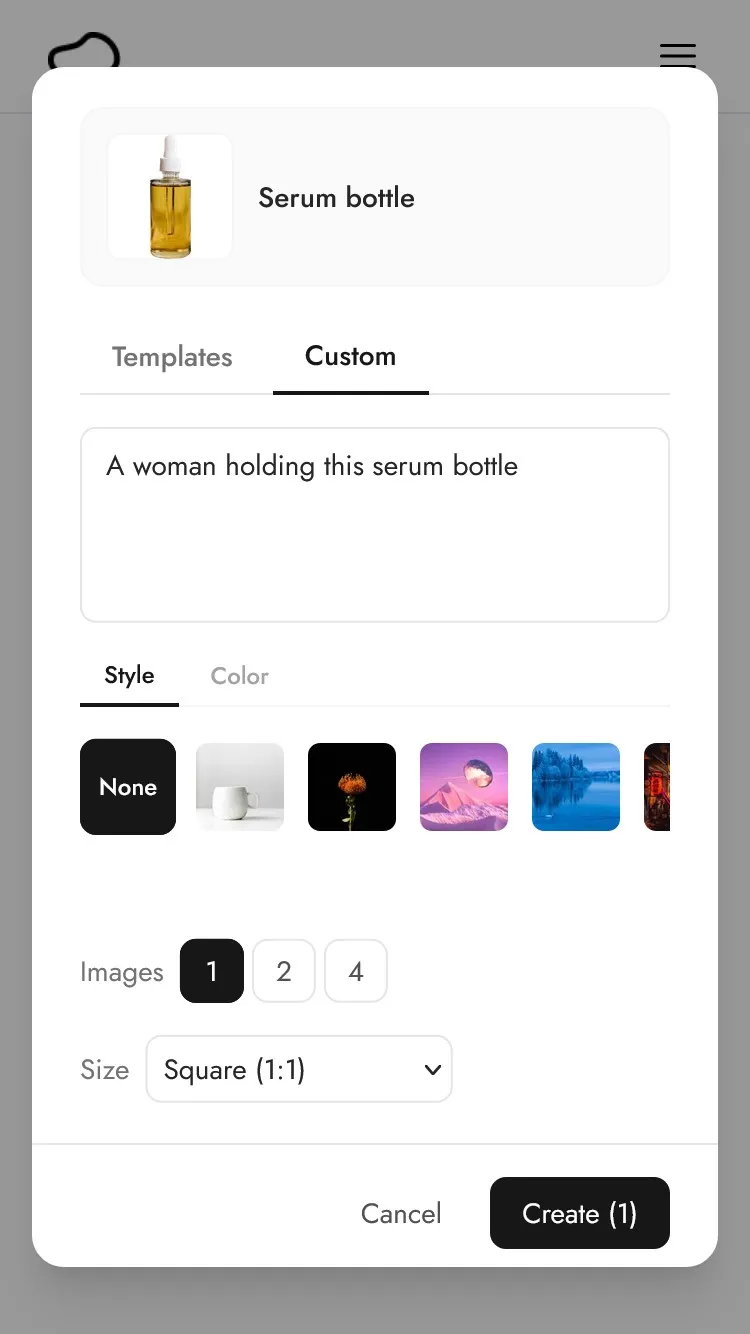
If you want something more specific, click on Custom to describe the background you want in your own words. For example, "A woman holding this serum bottle", "On a marble countertop with soft morning light", or "In a cozy kitchen with wooden shelves". You have complete creative freedom to describe any scene you can imagine.
Learn more: 10 AI Product Photography Prompts That Work
Style Images & Brand Colors
You can also pick a specific style image or color that will influence the resulting image. Choose from preset colors (white, cream, sage, blue, tan, black), use the custom color picker for an exact match, or upload a style reference image to guide the AI toward your brand's look and feel. Save your favorite styles to reuse them across all your products for a consistent brand aesthetic.
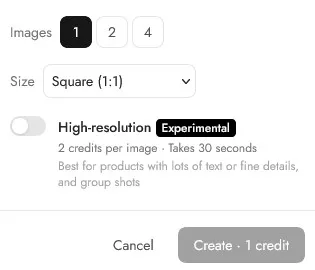
Image Sizes
Choose the right image size for your platform. Pebblely supports Square (1:1) for Instagram and Shopify, Portrait (4:5) for Instagram feed, Story (9:16) for Instagram and TikTok, Landscape (16:9) for website banners, and Facebook Ad (16:9) for social campaigns.
High-Resolution Mode
For products with text, fine details, or when you need pixel-perfect quality, enable High-resolution mode. This uses a more powerful model that produces sharper, more detailed results. High-resolution images cost 2 credits each (instead of 1) and take about 30 seconds to generate.
Click Create to start the generation.
Step 3: View Results
When you click on Create, you will be redirected to Recent Images. This will show your previous images and pending creations.
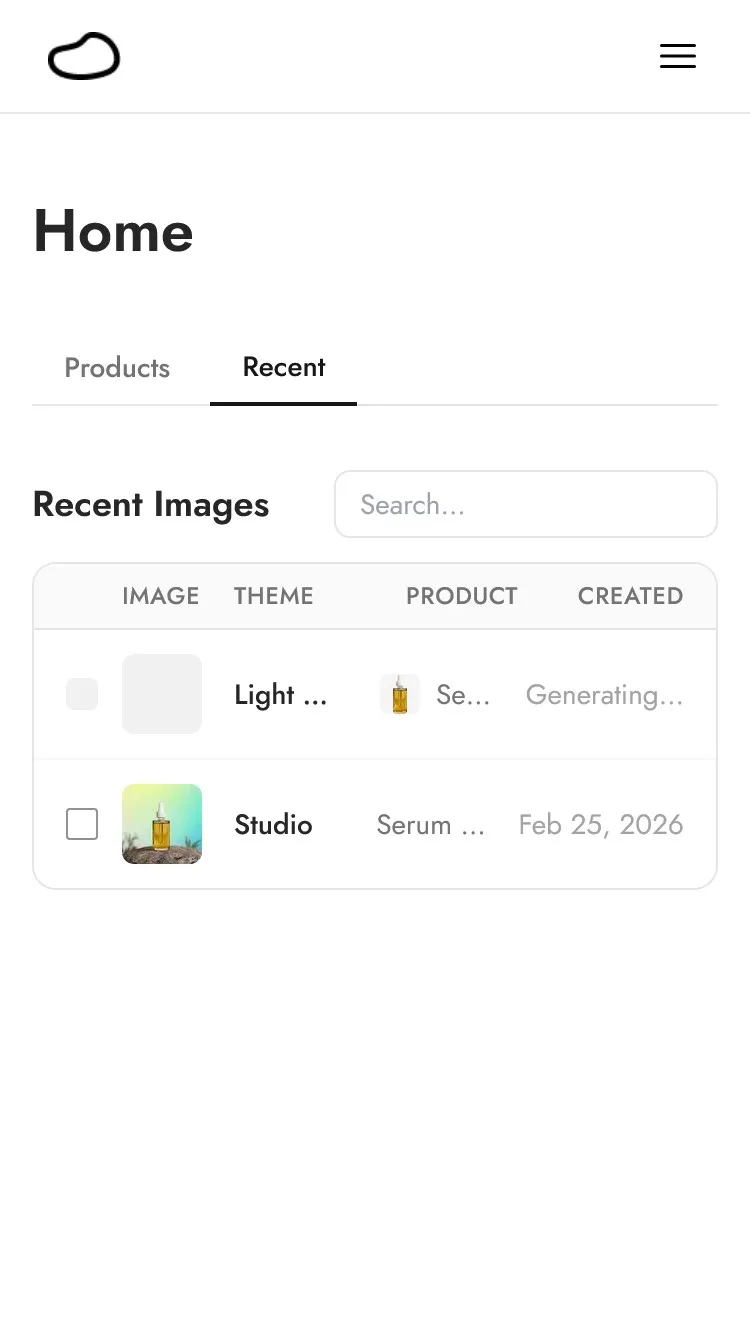
Each image will take about 10 seconds to generate.
You can filter your results by resolution (All, HD, or Standard) or search by theme or prompt to find specific images.
Once generated, you can click on the result to view the image.
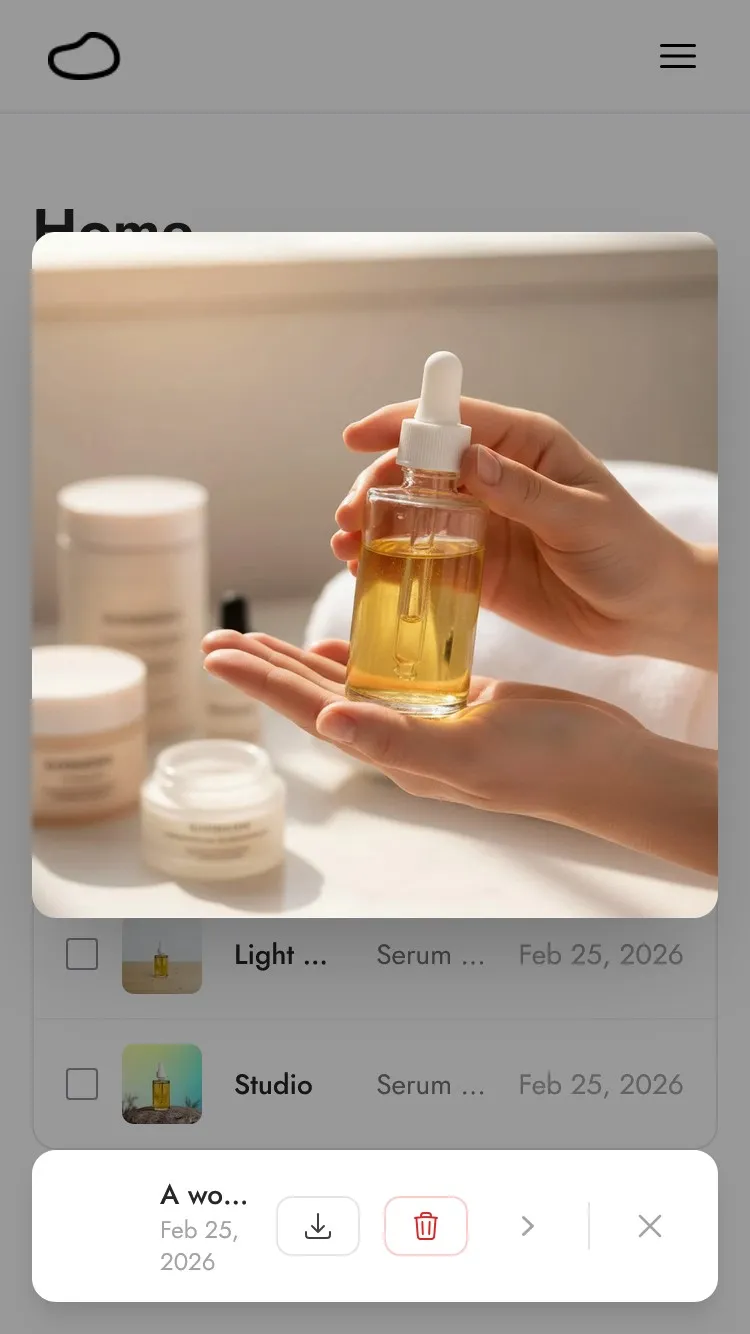
You can then click on the download button to download the image.
Bonus: Edit Your Results
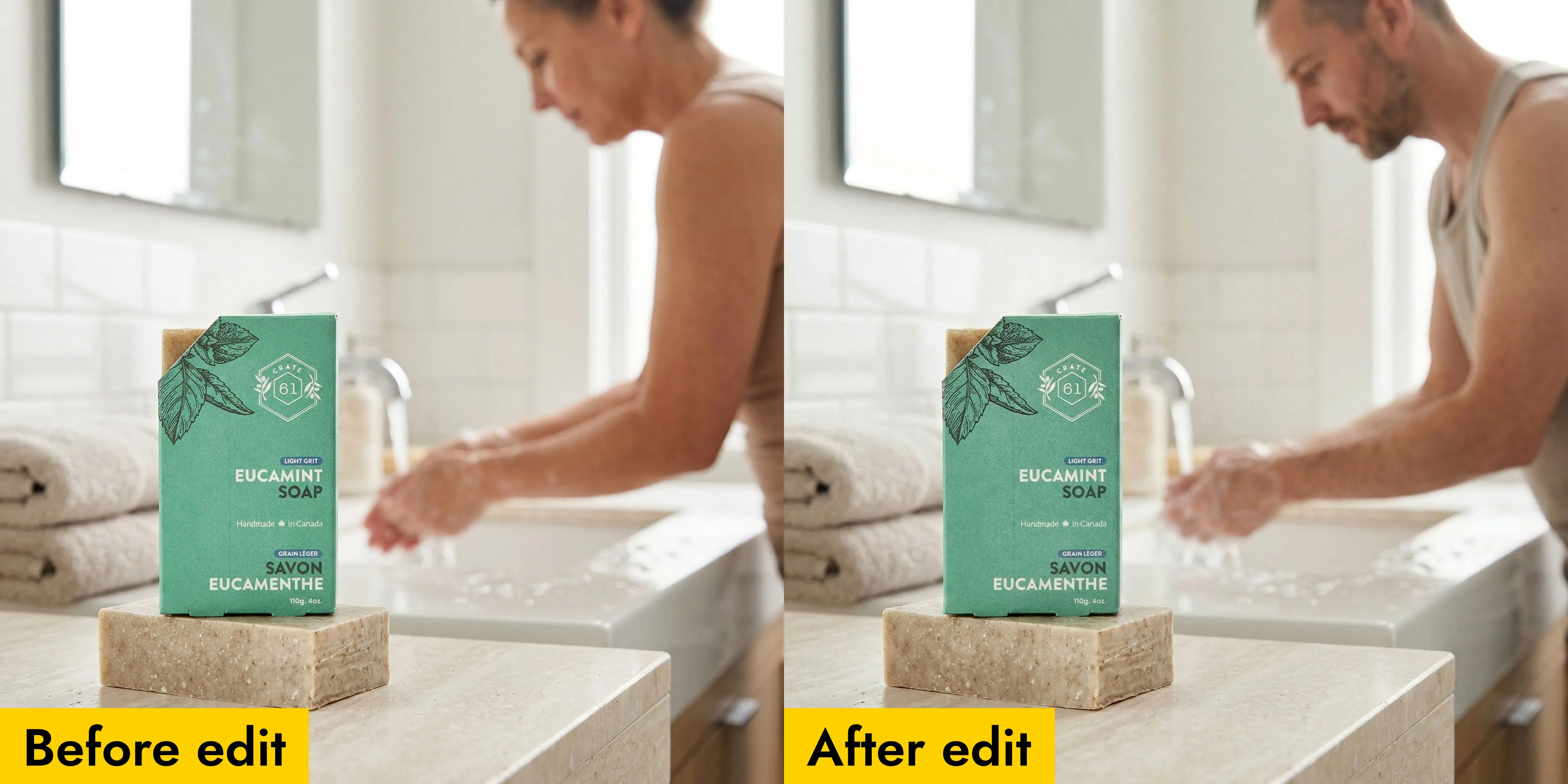
Example edit: "Change the woman in the background to a man"
Didn't get the perfect shot? You can edit any generated image without starting over. Click the edit button on a result and describe what you want to change, e.g. "Make the lighting warmer" or "Change the background to a darker tone".
You can also change the image size or toggle high-resolution mode when editing. The AI will refine the image based on your description.
Bonus: Bulk Generate and Download
You can generate images for multiple products at once by clicking on the left checkboxes.
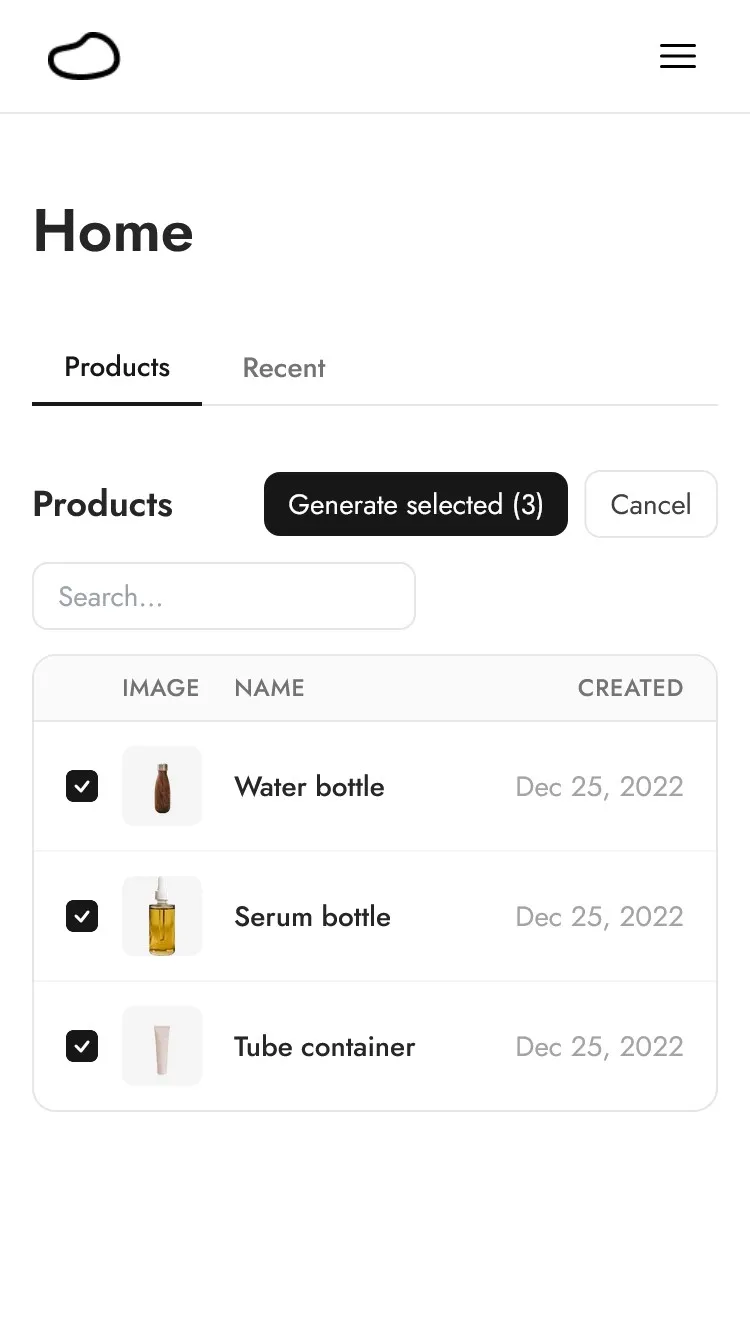
Then click on Generate selected.
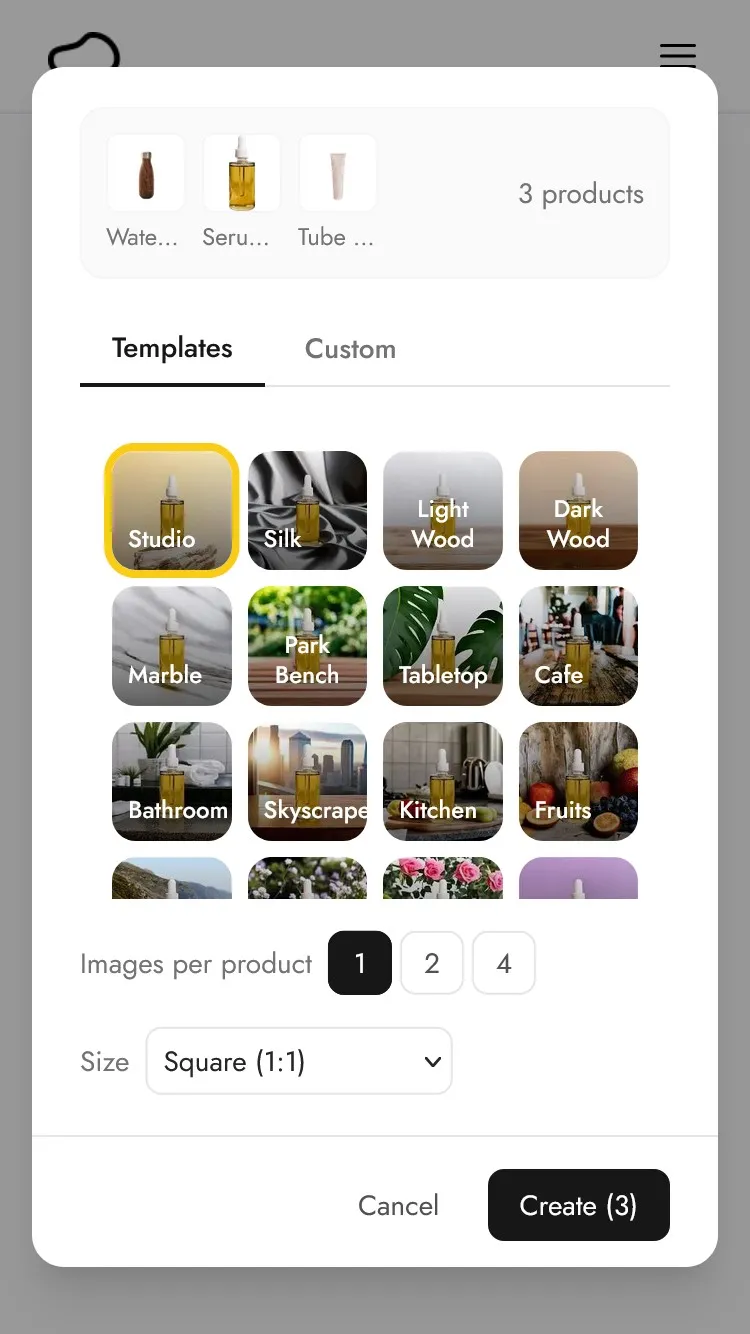
The screen that appears will show the selected products at the top. The Create button will also indicate the total number of resulting images that you will be creating.
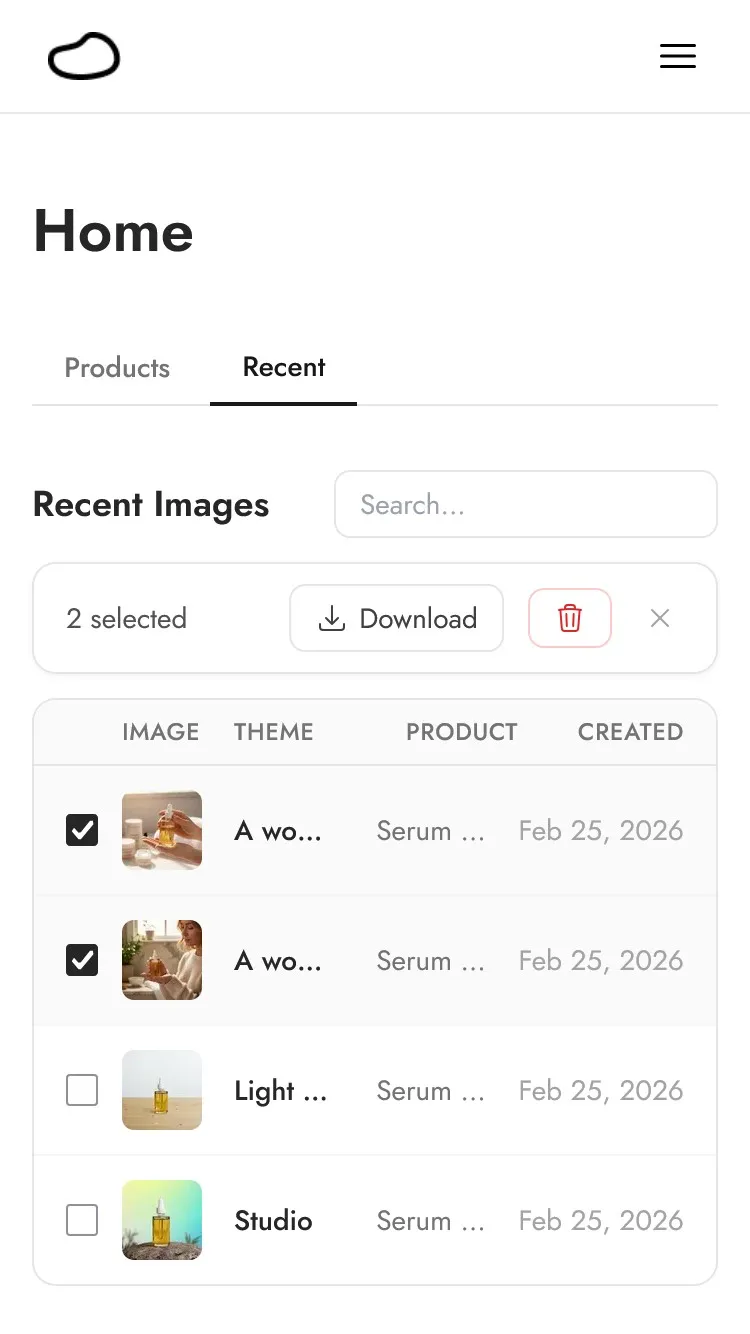
Once generated, you can also bulk download by clicking on the left checkboxes in the Recent Images screen, then clicking on Download.
Bonus: Group Shots With Multiple Products

Want to showcase a product collection, gift set, or bundle? Select up to 5 products, then choose Group shot in the generation screen. The AI will arrange all your products together in a single scene.
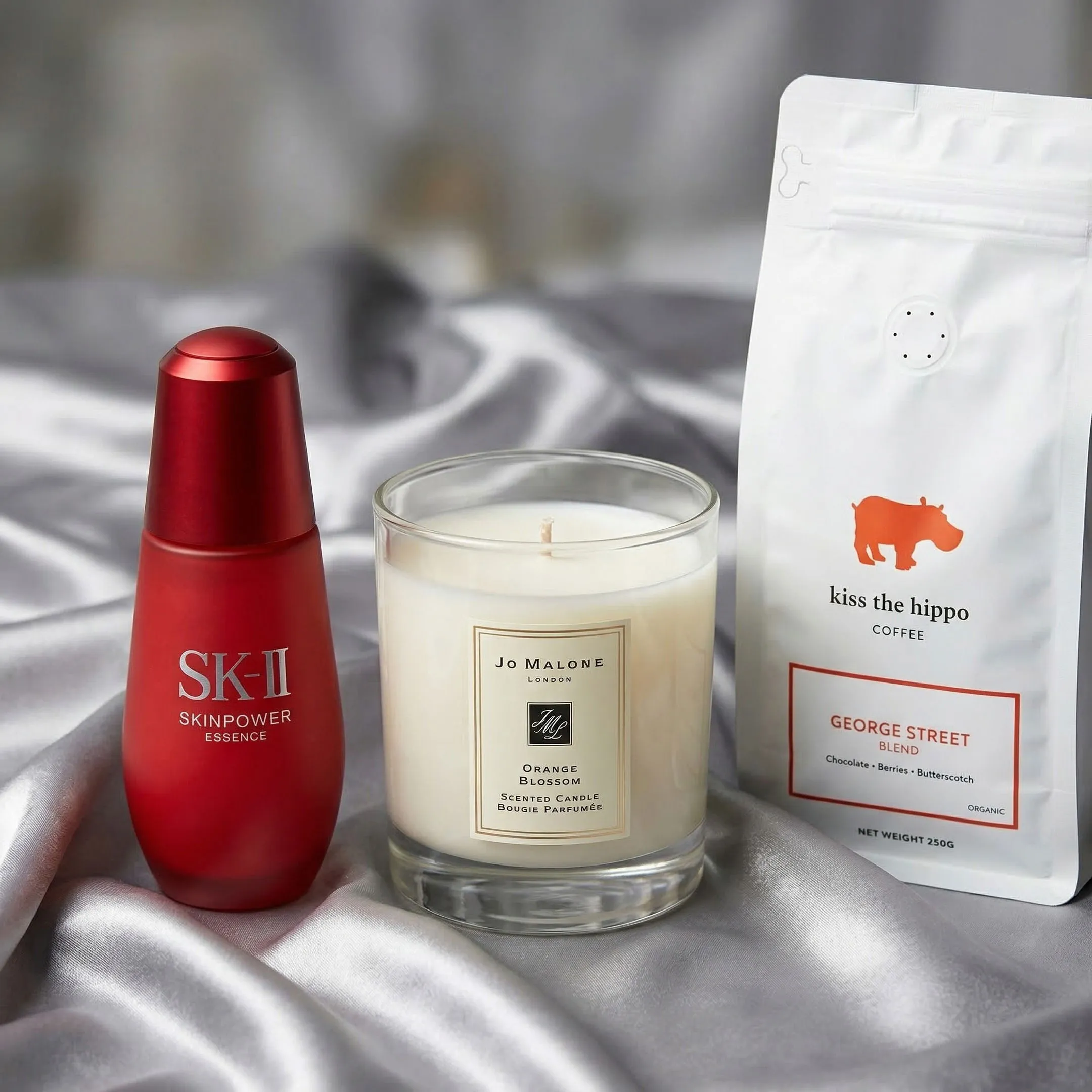
Group shots work with both templates and custom prompts, so you have full control over the scene.